Embroidery Basics
The Best File Format for Brother Embroidery Machines (and Why It Matters)
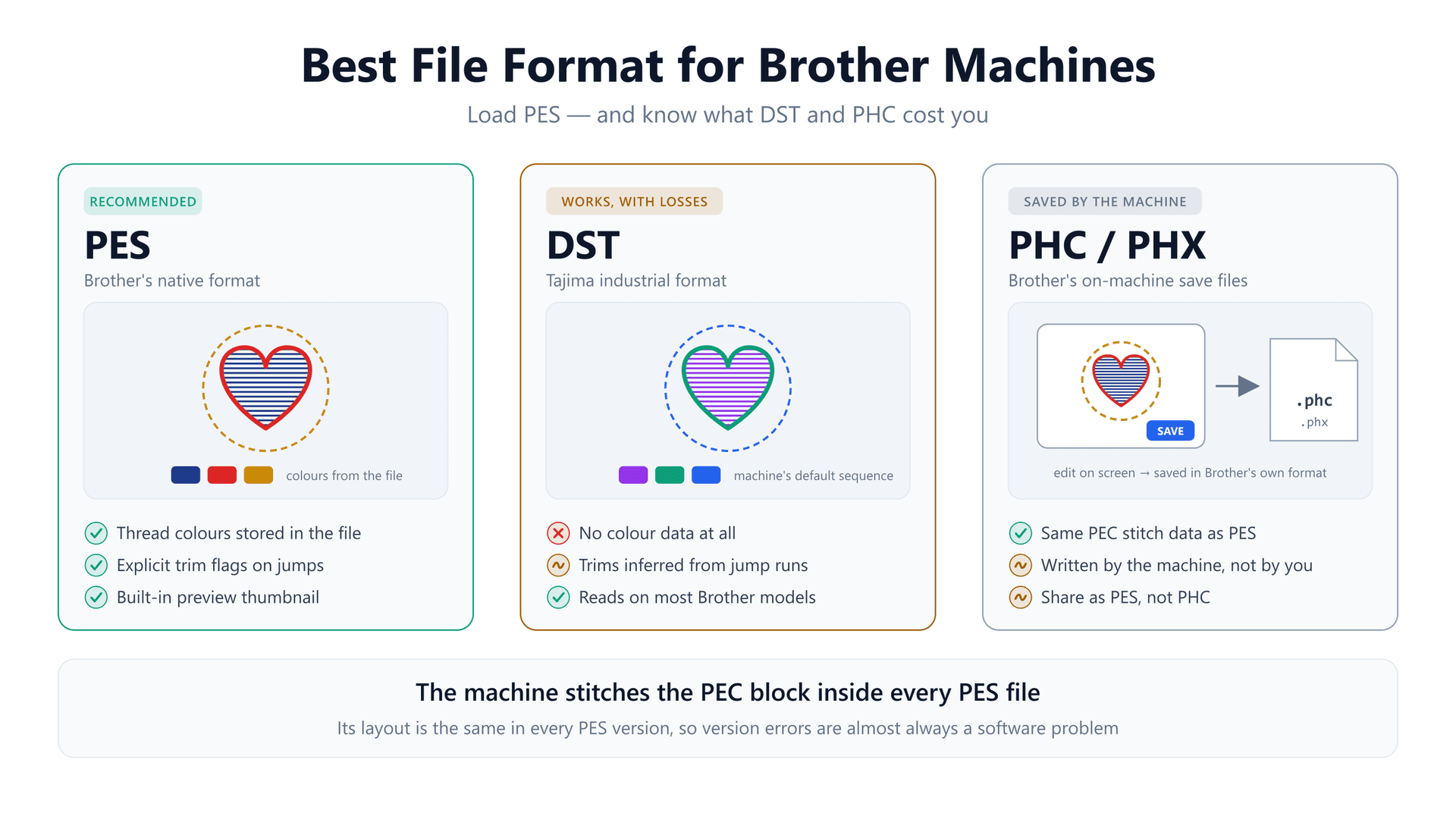
You buy a design, unzip the download, and find the same pattern in nine formats. You copy the DST onto a USB stick because it's the one everyone has heard of. Your Brother machine opens it without complaint — and shows a navy-and-red logo in purple, green and blue. The stitches are right. The colours are made up. What happened?
The short answer to "which format should I use on a Brother machine" is PES. Almost every guide stops there. The useful part is why, because the same reason explains the wrong colours above, why some PES files throw version errors in software but stitch fine on the machine, and which of the other files in that download folder you can safely ignore.
This guide covers what a Brother machine actually reads from a file, the four formats it accepts and what each one costs you, whether the PES version matters, and the checks to run when a design refuses to load.
The Short Answer: Use PES
PES is Brother's own format. Every Brother embroidery machine reads it, from the 4×4 entry-level combos to the PR multi-needle line, and so does every Baby Lock embroidery machine, which uses the same format. Nearly every design shop and digitizing program exports it. If a PES version of a design exists, load that one.
Brother's operation manuals list the files a typical current machine accepts from USB as .pes, .phc, .dst and .pen. That means DST works too, and PHC shows up whenever you save on the machine. They are not equal, though, and the difference lives inside the file.
What a Brother Machine Actually Reads Inside a PES File
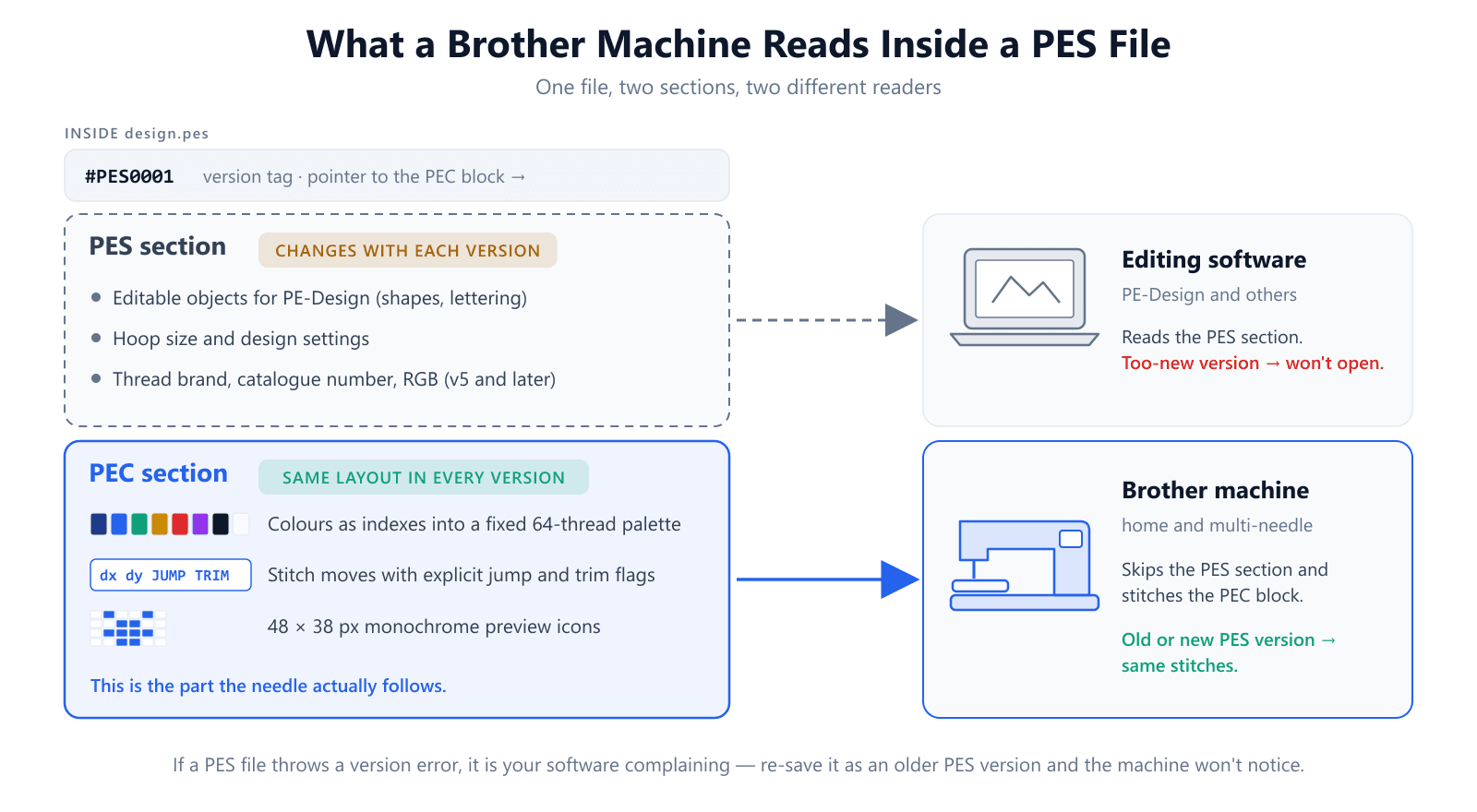
A PES file is not one block of stitches. It is two sections packed together, written for two different readers. A 12-byte header at the top holds a version tag — #PES0001 for version 1, #PES0060 for version 6 — and a pointer to where the second section starts.
The first part, the PES section, is for editing software such as Brother's PE-Design. It holds the design as editable objects, hoop and layout settings, and from version 5 onward a full thread list with brand, catalogue number and RGB. This is the part that changes from one PES version to the next.
The second part, the PEC section, is for the machine. It contains three things:
- The colour list, stored as indexes into a fixed Brother palette of 64 thread colours, so every colour block knows which thread it wants.
- The stitch stream: each move recorded as a small x/y offset in 0.1 mm units, with explicit flags that mark a move as a jump or a trim.
- Preview icons: small 48 × 38 pixel monochrome thumbnails, one for the whole design and one per colour, which the machine shows in its file browser.
When you load a PES file, the machine follows the pointer, jumps straight to the PEC section and stitches from there. The PES section is skipped. This is the single most useful fact about the format, because almost every practical question about Brother files follows from it.
The PEC stitch encoding is also roomy. A long-form move can travel up to 2,047 units, about 204.7 mm, in a single record. A DST record tops out at 121 units, or 12.1 mm, so a long jump in a DST has to be broken into a chain of short ones. You never see that difference on the fabric, but it is a hint at how much tighter DST's format is — and the next section is about what that tightness leaves out.
The Formats a Brother Machine Accepts, Compared
PES — the default, and the only one you need
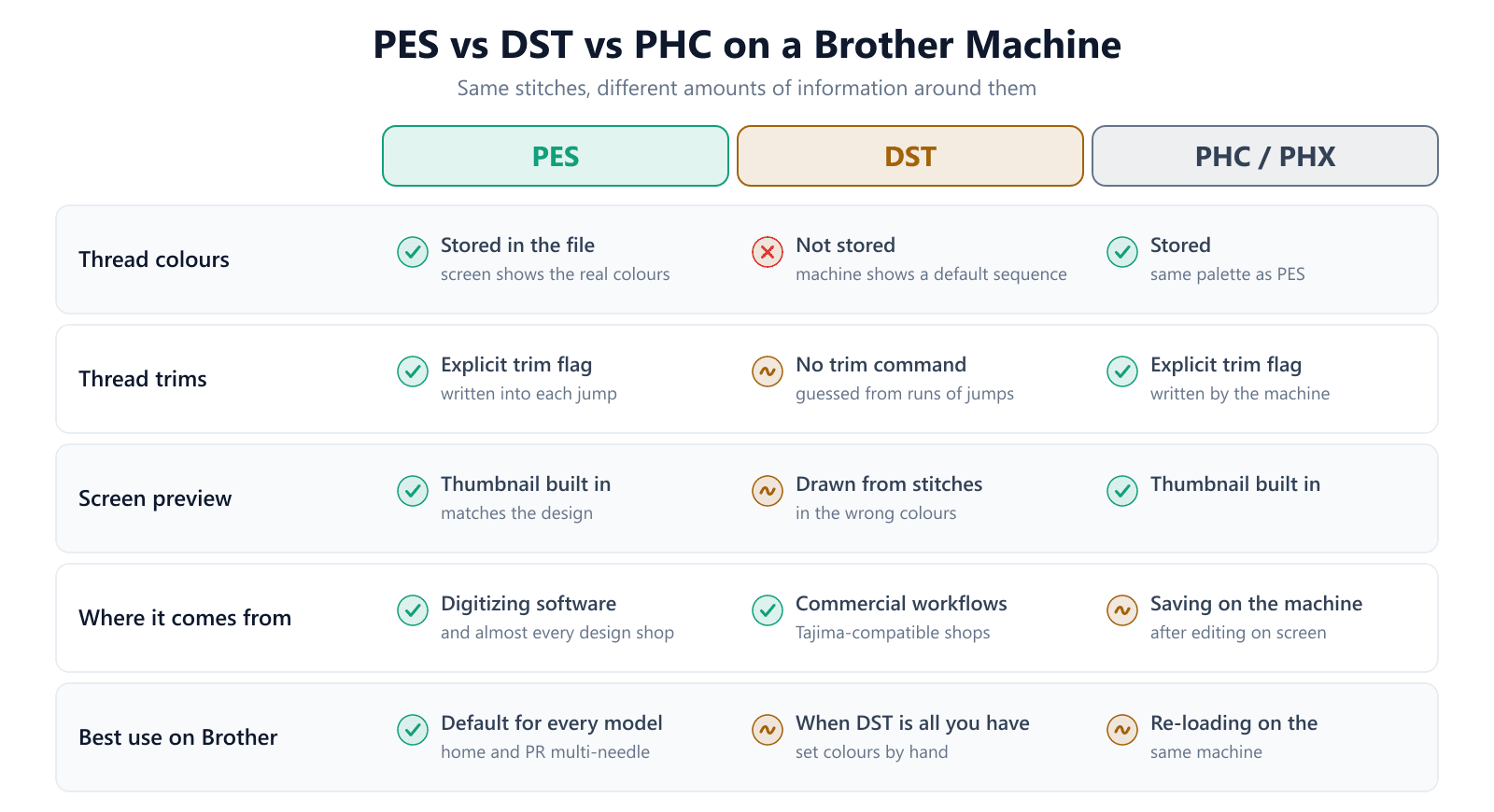
PES gives the machine everything it can use: the real thread colours, explicit trims, and a preview thumbnail that matches the design. The colour list on the screen reads in the right order with the right shades, so you can thread up without a separate colour chart. On machines with automatic jump-stitch trimming, the trims the digitizer placed are honoured exactly.
DST — it works, but you lose two things
DST is the Tajima industrial format, built for commercial multi-head machines where an operator assigns thread to needles by hand. Most current Brother models read it. Two things get lost on the way, and both trace back to what DST simply doesn't store.
Colours.A DST file records stitch moves and colour-change stops, nothing else. There is no field for what colour comes next. Brother's manuals state it directly: Tajima data contains no thread colour information, so the machine displays it in its default thread colour sequence. That is the purple-green-blue logo from the opening. The stitching is correct; the colours on the screen are placeholders.
Trims.DST has no trim command either. The convention is that a run of consecutive jumps — often three, set by the digitizing software — means "cut here", and digitizers insert tiny back-and-forth jumps to trigger it. Brother machines with automatic trimming instead decide by jump length: the jump-stitch-trim setting is on by default and adjustable from 5 mm to 50 mm in 5 mm steps, and jumps at or below the setting are left untrimmed. The result is that a DST may trim in different places on a Brother than on the commercial machine it was digitized for. Entry-level models that don't trim jumps automatically leave them all for you to snip anyway.
If DST is all you have, it will stitch. Print the colour chart that came with the design and re-assign the colours on screen, or better, convert the file to PES once and set the colours there so the job is done for good. For a deeper look at the two formats side by side, see DST vs PES.
PHC and PHX — files the machine writes
When you edit a design on a Brother screen — combine two motifs, add lettering, rotate — and save it, the machine writes it in its own format. Brother's manuals note that saving on the machine produces a .phc file whatever the original extension was. PHX is a newer variant you will see from recent top-end models and PE-Design 11.
These files carry the same kind of PEC stitch data as a PES, so they reload perfectly on the machine that made them. You never need to create one yourself, and you shouldn't buy or convert to them. When sharing a design with another person or machine, send PES: it opens in far more software and on every Brother and Baby Lock model.
JEF, EXP, VP3, HUS, XXX — convert these first
Formats native to other brands — Janome's JEF, Melco's EXP, Pfaff's VP3, Husqvarna Viking's HUS, Singer's XXX — generally won't load on a Brother. Retailers' spec sheets for popular models such as the PE545 list them explicitly as unreadable. The fix is a format conversion, not re-digitizing: all of these files describe the same needle positions, jumps, trims and stops, so a converter can rewrite them as PES without changing a single stitch.
Starting from a logo or picture? Get a Brother-ready PES file with the thread colours already set.
Try the AI digitizerDoes the PES Version Matter?
This is where most confusion comes from, and the two-section structure clears it up. Designers sometimes see a warning that a PES file is "version 6" or "version 11" and assume their older machine won't take it. Usually it will.
The PES sectionchanges with every release of PE-Design, and an older copy of the software often can't open a file saved by a newer one. That is a real limitation — but it's a software limitation. The PEC section, the part the machine stitches, was kept backward compatible on purpose so that new files would still run on old hardware.
So in practice:
- If your machine loads the file but your editing software refuses it, re-save it from newer software as an older PES version. Most programs offer a version drop-down on export.
- If you control the export, version 1 is the safest choice. It is the smallest, oldest layout every Brother and Baby Lock machine and every editor understands.
- If a machine genuinely shows a format error, check the size, the file name and the stick first (see below). Those cause far more failures than the version number.
For what it's worth, EmbroidAI writes PES files as version 1 for exactly this reason: nothing is gained by a newer header when the machine is going to skip it anyway.
Which Format for Which Brother Machine
The answer barely changes across the range, but the reasons shift slightly.
- Entry-level single-needle machines (PE535, SE600/SE700, PE800, SE2000 and similar): PES, every time. On a 4×4 or 5×7 field there is no reason to accept DST's missing colours.
- Mid and top-end Innov-is models with on-screen editing: PES for loading. Let the machine write PHC or PHX when you save your edits, and export to PES when you share them.
- PR-series multi-needle machines: PES is still preferred because the colours arrive pre-mapped. DST is workable here, since multi-needle operators are used to assigning thread to needle bars by hand anyway.
- Baby Lock embroidery machines: the same PES format, so the same advice applies.
When the Machine Won't Read the File
Most "my Brother won't read this design" problems aren't format problems at all. Before converting anything, run two checks.
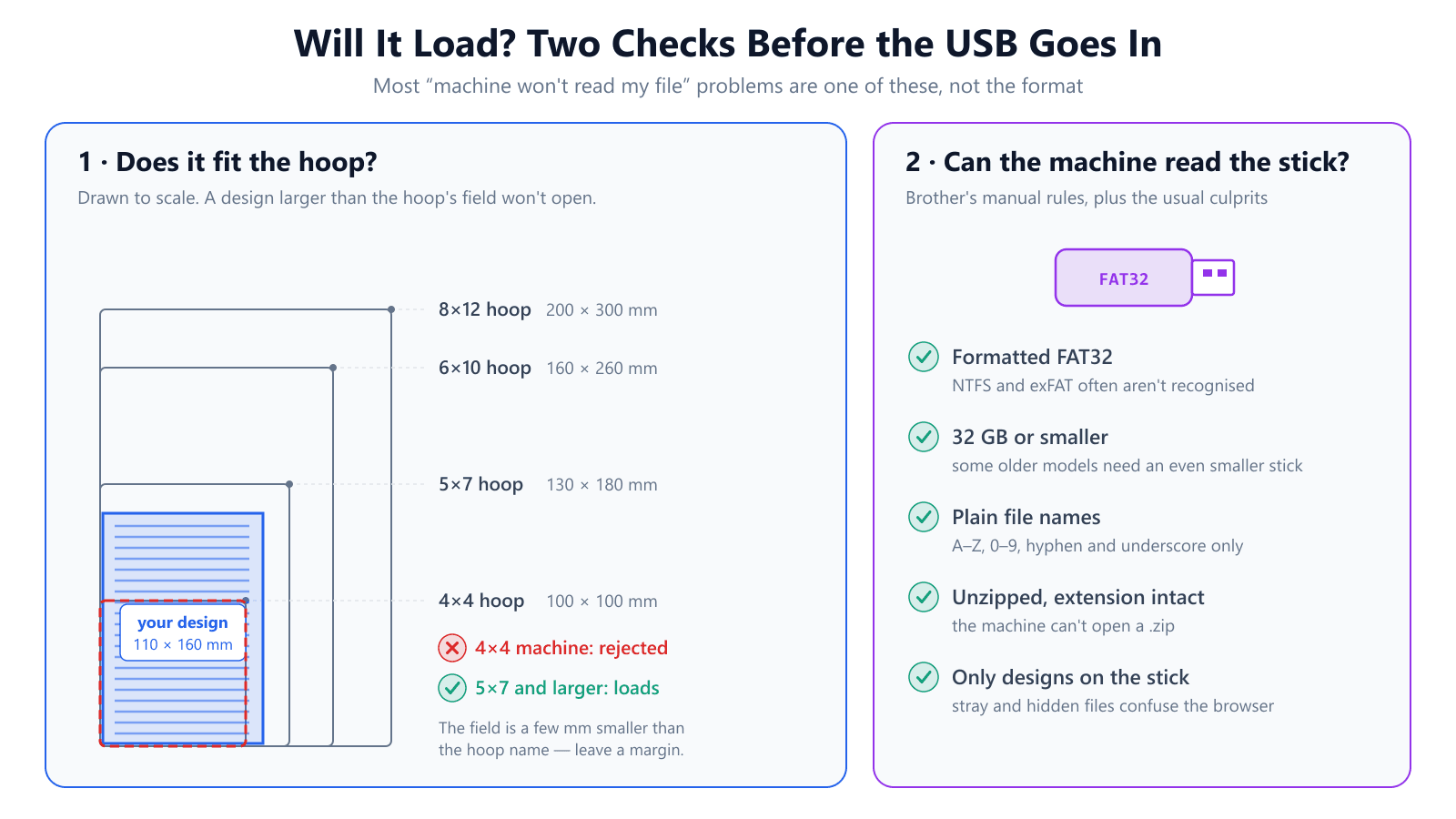
Check 1: does it fit the hoop?
A Brother machine won't open a design that is larger than the sewing field of the hoop it is set up for. The common Brother hoop sizes are 4×4 (100 × 100 mm), 5×7 (130 × 180 mm), 6×10 (160 × 260 mm) and 8×12 (200 × 300 mm), and the usable field is a few millimetres smaller than the name suggests. A 110 × 160 mm design simply cannot appear on a 4×4-only machine, whatever format it is in.
Don't fix this by scaling the stitch file down by a large amount on the machine. A stitch file has a fixed number of stitches, so shrinking it much beyond 10–20% packs them too tightly and the result turns stiff and bulletproof. Get a version digitized for the smaller hoop instead.
Check 2: can the machine read the stick?
Brother's manuals are specific about USB media, and most of the remaining failures come from ignoring them:
- Format the stick FAT32. Sticks formatted NTFS or exFAT are often not recognised at all.
- Use a stick of 32 GB or less, which is Brother's recommendation. Some owners of older models report needing an even smaller one.
- Name files with plain letters A–Z, digits 0–9, hyphens and underscores only — no spaces, accents or symbols. Never delete or change the .pes extension.
- Unzip first. Designs are sold as .zip archives and the machine cannot open them.
- Keep only designs on the stick. Leftover files for other machines, and the hidden files some computers add, can confuse the machine's file browser.
The fastest diagnosis is to format a small stick, copy one unzipped PES file onto it, and try that. If it loads, the problem was the stick or its contents. If it doesn't, open the file in a PES viewer to confirm it isn't damaged and to read its real dimensions in millimetres.
Converting Other Formats to PES
Because embroidery formats all store the same basic stitch commands, converting between them is a straight translation. Our free DST ⇄ PES converter runs in the browser and rewrites the file without touching the stitch positions. Two caveats are worth knowing before you convert a whole library.
First, a converter can't invent information the source didn't have. A PES made from a DST still has no idea which colours the designer intended, so you will assign them once, ideally from the original colour chart. Second, trims that were encoded as jump runs in the DST become explicit trim flags in the PES only if the converter recognises the pattern, so do a test stitch-out before trusting a converted file on a garment. If you want to check a DST before converting it, the DST viewer shows its stitch paths, colour stops and jumps; our guide to jumps, trims and colour changes explains how each is encoded.
Brother File Format Checklist
- Load PES whenever a PES version of the design exists.
- Treat DST as a fallback: expect default colours and re-check the trims.
- Let the machine write PHC or PHX when you save; share designs as PES.
- Convert JEF, EXP, VP3, HUS and XXX to PES — conversion doesn't change the stitches.
- Ignore PES version warnings on the machine side; re-save as version 1 for older software.
- Confirm the design fits the hoop field, with a few millimetres to spare.
- Use a FAT32 stick of 32 GB or less with plain file names and unzipped files.
- Don't shrink a stitch file more than about 10–20% on the machine.
Conclusion
The best format for a Brother embroidery machine is PES, and the reason fits in one sentence: the machine stitches from the PEC block inside every PES file, which carries the real thread colours and explicit trims and hasn't changed shape between versions. DST stitches the same moves but leaves out colours and trims. PHC is just what the machine writes for itself.
If you're starting from artwork rather than a finished design, skip the conversion step entirely — the EmbroidAI image-to-embroidery converter exports a PES file with the thread colours already set, written as version 1 so it loads on any Brother or Baby Lock machine. For more on the format itself, see what is a PES file.
Frequently Asked Questions
What file format does a Brother embroidery machine use?
PES is Brother's native embroidery format and the one every Brother home and multi-needle machine reads. Most models also accept Tajima DST, plus the PHC files the machine writes when you save an edited design. Formats from other brands — JEF, EXP, VP3, HUS, XXX — have to be converted to PES first.
Can a Brother embroidery machine read DST files?
Most current Brother models can, but you give something up. DST stores no thread colours, so the machine shows the design in its own default colour sequence and you have to work out which thread goes where. DST also has no trim command, so trims depend on how the digitizer encoded the jumps. If a PES version of the same design is available, load that instead.
Why does my DST file show the wrong colours on my Brother machine?
Because the colours were never in the file. A DST records only stitch moves and colour-change stops, so Brother's manuals say the machine displays DST data in its default thread colour sequence. The stitching is correct; only the on-screen colours are placeholders. Use the design's colour chart, or convert it to PES and assign the real colours once.
Does the PES version matter for my Brother machine?
Rarely for the machine, often for software. A PES file holds a PES section that editing software reads and a PEC section the machine stitches from, and the PEC section has kept the same layout across PES versions. If a file won't open, it is usually an older copy of PE-Design or another editor rejecting a newer version — re-save it as an older PES version.
What is a PHC file on a Brother machine?
PHC is the format a Brother machine writes when you edit a design on its screen and save it to memory or USB. It carries the same kind of PEC stitch data as a PES file. You don't need to create PHC files yourself, and for sharing a design with other people or other machines, PES is the better choice.
Why won't my Brother embroidery machine read my USB stick?
The usual causes are the stick, not the design: it isn't formatted FAT32, it is larger than the 32 GB Brother recommends, the file name contains spaces or special characters, the design is still inside a .zip, or the design is larger than the hoop attached to the machine. Test with one unzipped PES file on a small, freshly formatted stick.
Is PES the same format for Baby Lock machines?
Yes. Baby Lock embroidery machines use the same PES format, so a PES file made for a Brother machine loads on a Baby Lock with the same hoop size, and the advice in this guide applies to both.
Can I convert a JEF or EXP file to PES for my Brother machine?
Yes. Stitch formats translate cleanly into each other because they all describe the same thing — needle positions, jumps, trims and colour stops. A format converter rewrites the file without re-digitizing it. What it can't do is add information the source lacked, so a design converted from DST or EXP still needs its thread colours assigned.